A customer running Horizon with Windows 10 recently inquired about performing in-place upgrades on their templates. Typically, I would recommend building a new template for a major OS upgrade; there’s often many GBs’ worth of redundant bloat that remains dormant in the file system after an in-place upgrade.This can be detrimental for storage, performance, and general housekeeping of the desktop image.
On this occasion, a new template build wasn’t feasible, so we had to go in-place.
Before starting, clone the VM and test the process first. It’s easy to break Windows 10 if firmware or BIOS settings are misconfigured in vCenter. The following steps assume prerequisites for Windows 11 are already in place, including a native key provider configured in vCenter.
For background information on vTPM in vSphere I recommend the Q&A on vTPM from VMware and the Broadcom guidance; albeit the latter doesn’t explain the disk partition issue covered below, so take this into consideration before proceeding.
Environment: VMware Cloud on AWS
Scale: This process is for a single VM and doesn’t cover automated/batch upgrading.
Operating System: Windows 10 Enterprise 22H2 to Windows 11 24H2.
Convert existing partitions from MBR to GTP
One of the prerequisites I wasn’t aware of for Windows 11 on vSphere is the need for GPT partitions to enable EFI firmware options. There’s more detail on this here: Windows Setup: Installing using the MBR or GPT partition style | Microsoft Learn
My early attempts to upgrade were failing with similar errors as described in this Reddit article.
- Confirm the existing VM partition style via MMC > Disk Manager > right click OS disk > Properties > Volumes > Partition Style:
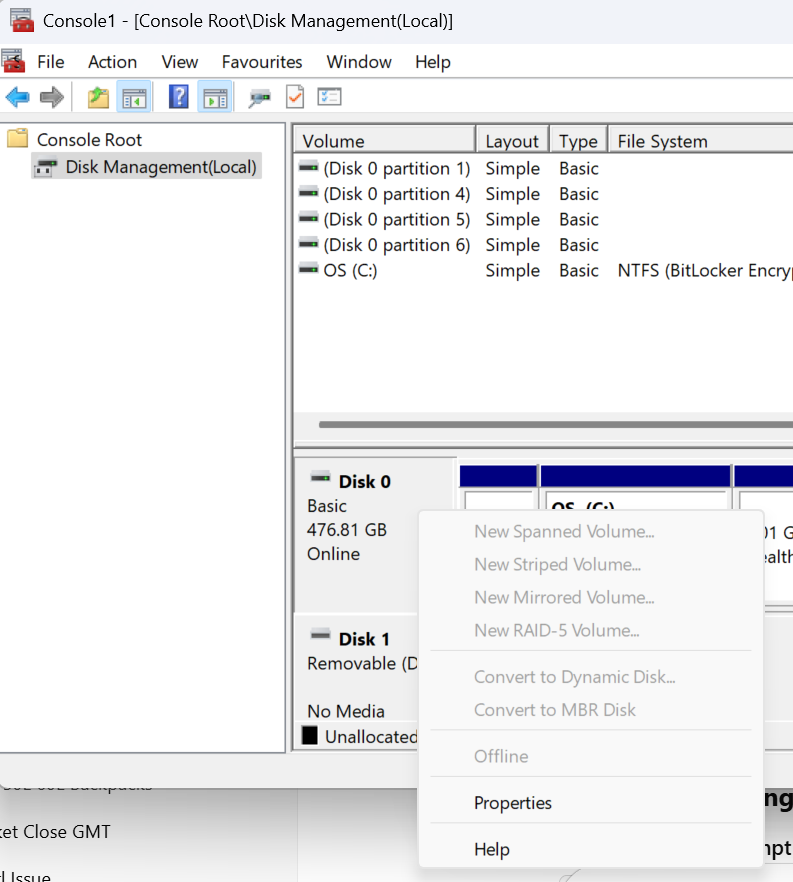
2. If the partition is MBR, it needs to be converted to GTP. If it is GTP, proceed to Step 6.

3. Follow the steps in this guide: Convert an existing Windows 10 Installation from Legacy BIOS to UEFI
4. Once the partition type has been converted successfully, shut down the VM. vTPM devices and boot/firmware configuration changes can only be performed on powered-off machines.
5. Configure secure boot on the VM by browsing vCenter > select the VM > Edit Settings > VM Options > Boot Options and set the Firmware: EFI and Secure Boot: Enable > Save.

6. To add a vTPM device Virtual Hardware > New Device > Trusted Platform Module. The vTPM will add to the VM and you can see the default VMCA-provided certificates are pre-populated. No further steps are needed.
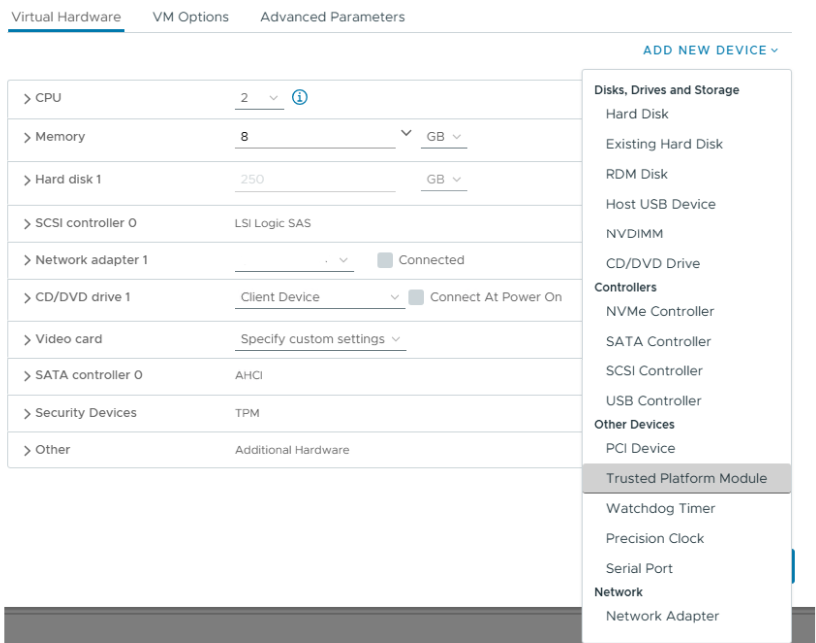
7. At this point the vTPM configuration is in place and the VM is ready to upgrade to Windows 11.
I decided to run the Windows 11 installation assistant to validate the machine configuration, and after the validation the wizard will automatically progress to an online upgrade to Windows 11 at the same build (Enterprise/Professional) as your existing installation.
Don’t forget to run Omnissa OSOT tool if you plan to use the virtual machine as an Horizon template.
 All things IT, EUC and Virtualization