A customer running Horizon with Windows 10 recently inquired about performing in-place upgrades on their templates. Typically, I would recommend building a new template for a major OS upgrade; there’s often many GBs’ worth of redundant bloat that remains dormant in the file system after an in-place upgrade.This can be detrimental for storage, performance, and general housekeeping of the desktop image.
On this occasion, a new template build wasn’t feasible, so we had to go in-place.
Before starting, clone the VM and test the process first. It’s easy to break Windows 10 if firmware or BIOS settings are misconfigured in vCenter. The following steps assume prerequisites for Windows 11 are already in place, including a native key provider configured in vCenter.
For background information on vTPM in vSphere I recommend the Q&A on vTPM from VMware and the Broadcom guidance; albeit the latter doesn’t explain the disk partition issue covered below, so take this into consideration before proceeding.
Environment: VMware Cloud on AWS
Scale: This process is for a single VM and doesn’t cover automated/batch upgrading.
Operating System: Windows 10 Enterprise 22H2 to Windows 11 24H2.
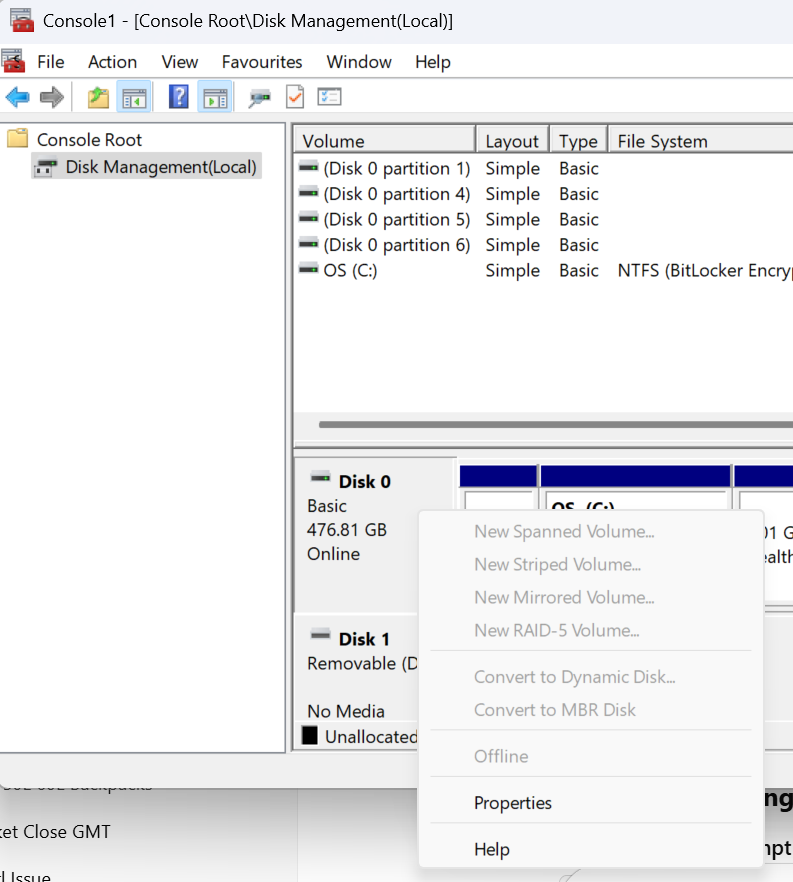
4. Once the partition type has been converted successfully, shut down the VM. vTPM devices and boot/firmware configuration changes can only be performed on powered-off machines.
5. Configure secure boot on the VM by browsing vCenter > select the VM > Edit Settings > VM Options > Boot Options and set the Firmware: EFI and Secure Boot: Enable > Save.
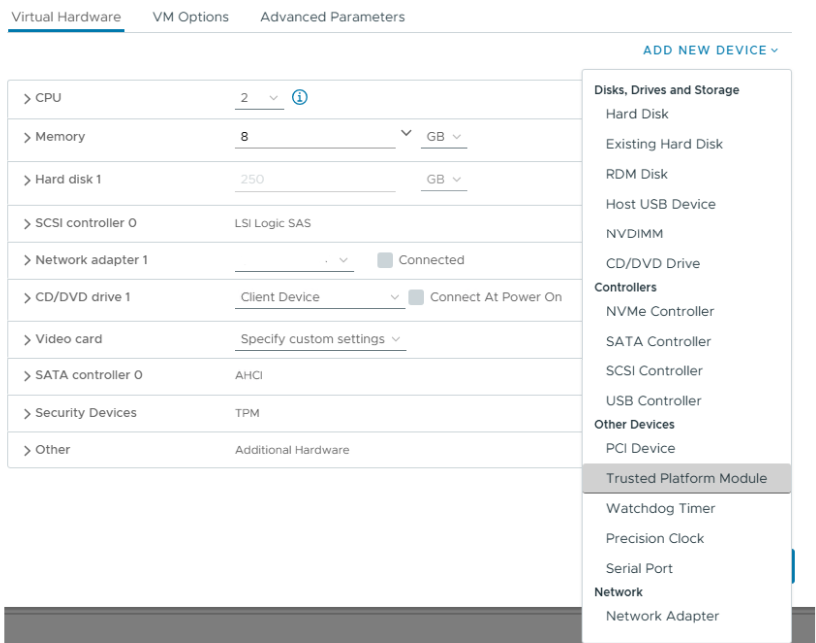
6. To add a vTPM device Virtual Hardware > New Device > Trusted Platform Module. The vTPM will add to the VM and you can see the default VMCA-provided certificates are pre-populated. No further steps are needed.
7. At this point the vTPM configuration is in place and the VM is ready to upgrade to Windows 11.
I decided to run the Windows 11 installation assistant to validate the machine configuration, and after the validation the wizard will automatically progress to an online upgrade to Windows 11 at the same build (Enterprise/Professional) as your existing installation.
Don’t forget to run Omnissa OSOT tool if you plan to use the virtual machine as an Horizon template.
This is a commonly encountered issue with Aria for Logs and although the guidance from Broadcom helps, there isn’t a permanent solution provided and this is where I make use of a Cron job.
What’s a cron job?
Cronjob is the Linux equivalent of a Windows scheduled task. It can be used to automate any action that can be performed within the OS.
I use the Crontab.guru expression scheduler to help create the schedule for what it is I want to do and then put the job into the local machines cronjob list.
Configuring a cron jobto remove .hprof files
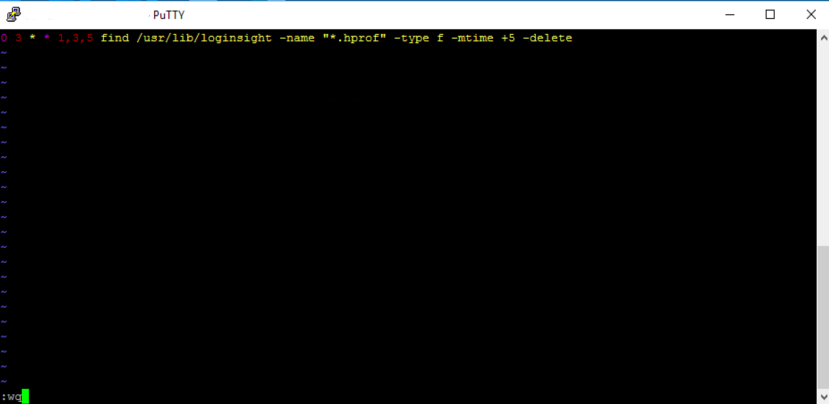
The syntax for the job is below and this invoke a task to search for .hprof files in /usr/lib/loginsight every Mon/Wed/Fri and then delete any that are older than 5 days.
Enterprise IT transformations from persistent to non-persistent desktops always bring new challenges with application delivery and profile management. I’ve used a variety of profile management tools from DEM and Profile Unity to Ivanti Environment Manager and FSlogix and they all have their respective strengths and weaknesses. I hope you find it useful!
Scenario: An application delivered as an AppVolume package requires user settings to be present on the local machine c:\ at launch time and roamed at logoff.
Typically I would tackle this issue using a combination of DEM logon tasks and DirectFlex. A shortcoming of DEM is that it cannot roam C:\ data using application templates. To work around this constraint, a logon task can be used to import the configuration files as a one-time event. DirectFlex can be enabled (optionally) if needed. At logoff, we can use a script to move the files to %roamingappdata% location. An application template can pick them up there.
Why didn’t this work?
There were various Windows Smart Screen and UAC challenges initially. Scripts needed unblocking, and I had to create a DEM Elevated Task to execute them. After some wrangling, the logon scripts worked, and the configuration was copied from a network share to the local machines C:\ at logon. Success! However, the export job failed. The copy job from C:\ to %appdata% failed sporadically, I suspect, due to the AppVolume package detaching from the VM before the files could be copied.
Enter:Symbolic Links
Symbolic links are like an evolution of the Windows shortcut. A symbolic link can point to a file or directory in another location and be deployed via group policy or DEM. These can be used as an elegant function to circumvent the aforementioned DEM configuration. It’s particularly useful for applications that don’t store their configuration in local or roaming %appdata%.
Example
In this scenario, we need a directory from a remote location to be available on a VM C:\ root after the Appvolume package has attached.
There are 2 types of symbolic links: soft links or hard links, and they can point to directories or files. In this scenario we’ll point to a directory that is known as a junction link
mklink /J "<location>\<dir>" "<\\UNC or <dir>"
The application will see the directory as a native file system folder:
Summary
This was a really useful discovery for me personally. No doubt there are plenty of veteran techies reading this and thinking, ‘Nobody reads the CMD prompt manual these days!’—and you’d be right. I feel somewhat naive for having not discovered this years ago, having wrestled with countless profile issues where an application writes to %Programdata% or C:\.
On this thought, one area where Ivanti Environment Manager shines is in managing these types of scenarios. It does a better job than DEM at picking up dynamic changes to non-appdata locations. Equally, where DEM only operates at logoff/logon and triggered tasks, Ivanti can capture on-the-fly changes to the operating system directories. However, there is an infrastructure footprint required to run Ivanti EM; which is where DEM shines in providing excellent value whilst displacing incumbent profile systems.
I hope you’ve found this useful; please comment below if you’ve had good or bad experiences with symbolic links!
I wanted to share the maintenance procedure I used recently for a customer. We needed to power down their Horizon workload clusters and gracefully place all instant clone desktops into a maintenance state. I wasn’t aware of the vSAN Shutdown Cluster wizard feature and the magic that it performs. It saved me a lot of time. Several of my colleagues weren’t aware of the feature either. I’ve shared the process below.
The next steps explain how to power off instant clone pools, desktops, vCenter, and parent VMs. The process assumes all user sessions can be logged off and the pod will be unavailable. This is useful if you need to undertake cluster maintenance requiring a total power down of all ESXi hosts and Horizon workloads.
Log off any active user sessions
via Horizon Admin console > Sessions > select all available sessions > Logoff Session. Await completion and make sure no active sessions are in use.
Place all desktop pools into Disabled state:
via Horizon Admin console, select Desktops > select all pools > Disable Desktop Pools.
At this point, all desktop pools are unavailable for use and there are no users logged onto the platform.
The next step is to disable the Parent VMs. Although this step is optional, I include it here for awareness. From my testing, I found it prevented the instant clone VM’s from rebuilding when you shut them down.
Disable Parent VMs
via Horizon Admin console > Servers > select the vCenter instant > More > Disable ParentVMs.
This next step prepares the Horizon agent for powering off on an instant clone.
Place all instant clone pool desktops into maintenance mode
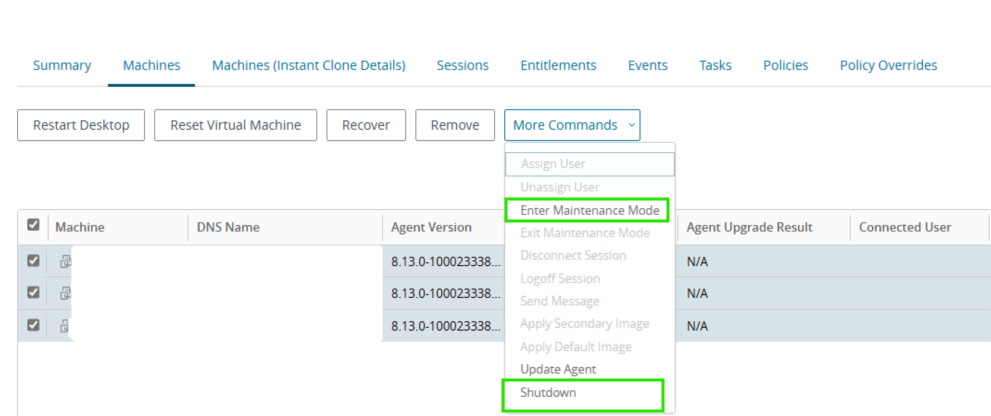
Select Desktops > target pool > Machines > select all > More Commands > Enter Maintenance Mode
By disabling provisioning, we avoid any new machines being rebuilt and generating problem VMs. We then power off all Horizon-managed VMs and the cluster hosts, and vSAN can be prepared for power down.
Disable provisioning on all pools:
via Horizon Admin Console > Desktops > select all pools > Disable Provisioning.
Shutdown all instant clone pool VMs
Select Desktops > target pool > Machines > select all > More Commands >Shutdown. Monitor the progress in vCenter.
At this stage, all Horizon desktops and RDS hosts should be powered off, with vCenter performing no provisioning or Horizon-related actions.
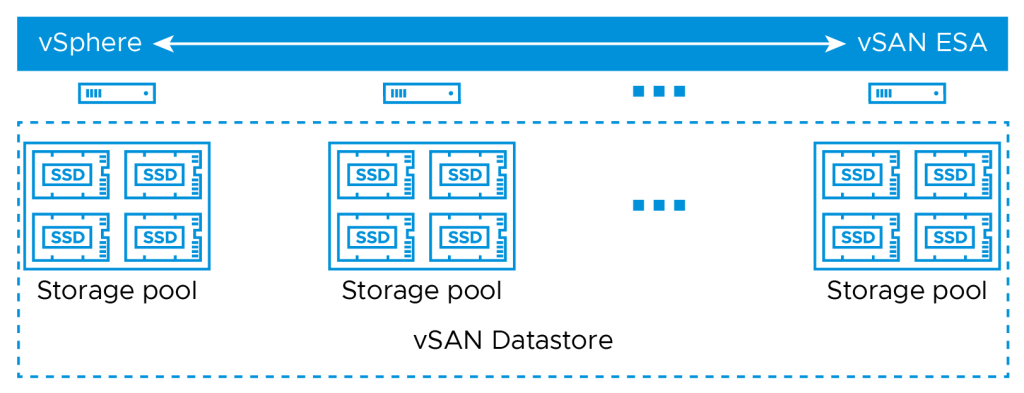
We can now continue with preparing the vSAN cluster and all hosts to shut down. The shutdown wizard will:
Turn off HA
Power off all system VMs
Disable cluster member updates from vCenter for all hosts in the cluster
Pause state changes of vSAN objects
Put each host into maintenance mode
Power off each host
vSAN Cluster Shutdown Wizard
Right click the Cluster object in vCenter > vSAN > Shutdown Cluster.
Note, if Shutdown Cluster is greyed out, browse to Configure > vSAN > Services > Shutdown Cluster
vSAN Restart Cluster
After successful maintenance, power the hosts back on via their iDRAC/iLO/Management interface.
All the hosts will power on and reconnect to vCenter in maintenance mode. To reinitialize vSAN and power the Horizon workloads back on, follow the below steps:
Right click the cluster object vSAN > Restart Cluster.
Once all hosts are participating in the cluster, select the cluster object > vSAN > Skyline Health > Test. Remediate any issues.
Power on Horizon Workloads
Enable ParentVMs for all desktop pool
via Horizon Admin Console > Servers > vCenter > More > Enable ParentVMs.
Enable provisioning on all pools:
via Horizon Admin Console > Desktops > select all pools > Enable Provisioning.
Exit Maintenance Mode for all desktop pools
Select Desktops > target pool > Machines > select all > More Commands > Exit Maintenance Mode
Enable all desktop pools:
via Horizon Admin console > Desktops > select all pools > Enable Desktop Pools.
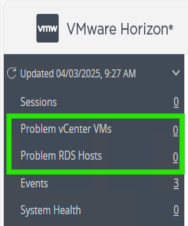
At this stage all Horizon workloads should be powered on and healthy. Review the Problem vCenter VMs for any issues and test provisioning by deleting some instant clone VMs.
Summary
There was some trial and error involved when I initially approached this procedure. The majority of cluster maintenance rarely requires a full power down, so Horizon workloads can be vMotioned between operational hosts. In this instance, we can gracefully shut down all the instant clones. vCenter can manage the vSAN and host power down. There is no need to log on to the hardware until bring-up. I love getting feedback or other tips, so please comment below.
I’ve used the below process several times during failed upgrades or downsizing of a Horizon pod. I’ve become strangely well versed with this procedure after working with a customer using Horizon 2111.2 and seeing various errors during upgrades that gave us no fix-forward choice, despite Omnissa support involvement.
The process combines the Omnissa guidance and some tips from Omnissa GSS.
Before Starting: Check FSMO Schema role owner
This prerequisite ensures you don’t see replication errors between the remaining healthy pod members. This can happen if you were to accidentally uninstall a connection server that was holding the local/global schema roles. If required, seize the role owner to another connection server instance.
Check the configuration and schema role owner and seize it to another connection server
From a connection server instance, open LDP.exe > Connection > Connect > localhost
Connection > Bind > Select Bind as currently logged on user
Click View > Tree > select CN=Schema, CN=configuration from the drop-down menu.
4. Search for the output for the text string “fsMORoleOwner “. The hostname of the owner will be displayed.
5. To seize the role to another connection server, first log onto the server you wish to seize the role.
Run the below command from an elevated command prompt. If the horizon pod has CPA enabled, there will be a Schema master for the local ADAM database. There will also be one for the global ADAM database. Remember to assign both roles to a different server.
6. Disable the connection server in Horizon Administration console by logging into https://ConnectionServer.domain.com/admin > Servers > Connection Servers > select target > Disable
7. Uninstall the components from appwiz.cpl or Add/Remove Programs: Horizon Connection Server, HTML Component, VMwareVDMDS and VMwareVDMDSG.
8. Remove VDM registry keys.
Right click HKLM\Software\VMWare…\VDM> Permissions > Advanced > select ‘Replace all child object permission entries with inheritable permission entries from this object’ > Apply > Ok.
Delete the parent key: HKLM\Software\VMWare…\VDM
9. Open the local Certificate Store > Personal > VMware View Connection Server > Delete all certificates within the store.
10. Reboot the server.
Remove references to unwanted connection server via vdmadmin
11. Use the below vdmadmin command to remove references to the unwanted connection server in the ADAM database. This command must be run from another connection server instance and is case sensitive.
cd C:\Program Files\VMware\VMware View\Server\tools\bin\

vdmadmin -S -r -s <NetBIOSName>
Check replication health
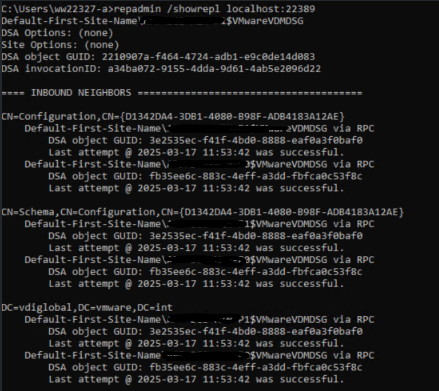
11. From any connection server instance command prompt, check replication health on the local ADAM database. The local ADAM database uses port 389. You can also check the global ADAM database, which uses port 22389.
The output should display replication connections between the existing local pod members, and for CPA, remote pods.
12. Login to the connection server administration console and verify the node has been removed from the list of connection servers.
Summary
After removing the connection server, the installation directory in Program Files will still contain some configuration files. This is intentional. It can be useful if you choose to rebuild the installation. It is also helpful if you need to back up the old configuration.
Recently, I was working with a small marketing agency, and they asked if I could assist them with implementing windows security baselines in an effort to gain CIS and ISO 2700 compliance. I’d never heard of these controls. Read about CIS controls here. They provide industry-tested security settings. These settings can be deployed via GPO or MDM for all major Microsoft OS’s, O365, and Azure environments.
Purpose
The below guide explains how to deploy the CIS benchmarks via group policy for an on-premise AD domain. It also explains how to validate your deployment using Policy Analyzer. Additionally, it provides some tips if you’ve never done this type of work and want to introduce some level of CIS compliance into your environment.
1/ Getting started
Define the scope for your deployment. Below are some questions myself and the client discussed to understand what we needed to do (example answers in green). It’s important to know these boundaries, so don’t accidentally deploy controls that aren’t required. Your audit report may guide you here, but remember – any introduction of new security settings is likely to cause some disruption at some point in time, so you should have a good awareness of where you are introducing the change and what services may be affected.
What OS’s are in circulation within the environment? Windows Server 2019 (2x Domain controllers and 12 member servers) Windows 10 1901 (5 client devices). It’s important to know whether you’re working on Domain Member or Domain Controller because server-specific CIS controls are separated by server role.
Do we want to deploy CIS controls to harden servers, desktops, domain controllers or all endpoints? We want to harden the DC’s and Servers only, no client devices.
Can we feasibly introduce the new security controls without any risk to production operations? Yes, create a new group policy OU structure with a test OU and a test virtual server.
If there is risk, how can we mitigate it and what is the rollback plan? Remove the GPO links and rebuild the test virtual server. In production, we’ll need to identify the problematic setting and remediate via group policy or local registry if necessary.
2/ Download the Microsoft SCT and CIS benchmarks
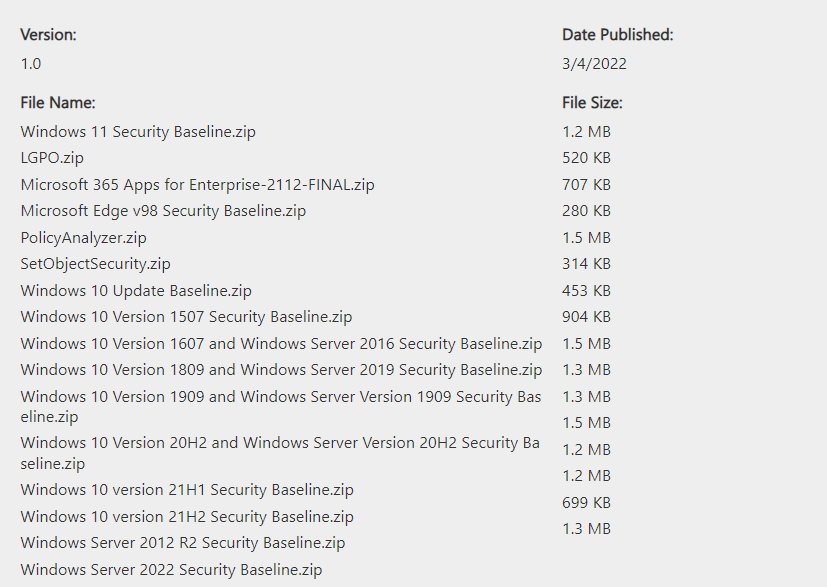
SCT contains the CIS benchmarks for all supported OS’s as well as several tools for helping you implement them. The only tool I had use for was Policy Analyzer.
The OS’s are paired Client + Server by their release cadence so you’ll notice Windows 10 1809 and Server 2019 security baselines in a single .zip
Extracting the baselines for your environment you’ll see the following folder structure.
Documentation: Contains Excel reports covering release notes and change records for the controls.
GP Reports: *useful* HTML reports of the CIS security controls.
GPO’s: the CIS controls as GPO’s, ready for importing into GPMC.
Local_Script: Powershell scripts that apply the CIS controls to the local policy of a machine, useful if you want to test the settings in isolation (and not use group policy).
Templates: ADML and ADMX files used by the CIS GPO’s.
3/ Using Policy Analyzer to review conflicts
At this point you’re ready to compare the incoming CIS controls against your existing GPOs and check for any conflicts. You’ll need to use Policy Analyzer.exe to perform the comparison and I recommend you take a backup of existing, actively used GPOs before getting started.
Take a backup of your existing Group Policy objects that are actively in use: it’s necessary to do this for 2 reasons; firstly, when you generate a comparison report in Policy Analyzer it’s much, much easier to identify where a conflict exists and remediate it when you have your existing GPOs individually compared instead of using ‘effective state’ (more on this in next step), secondly, you might screw up! So it’s always worth having a backup 🙂
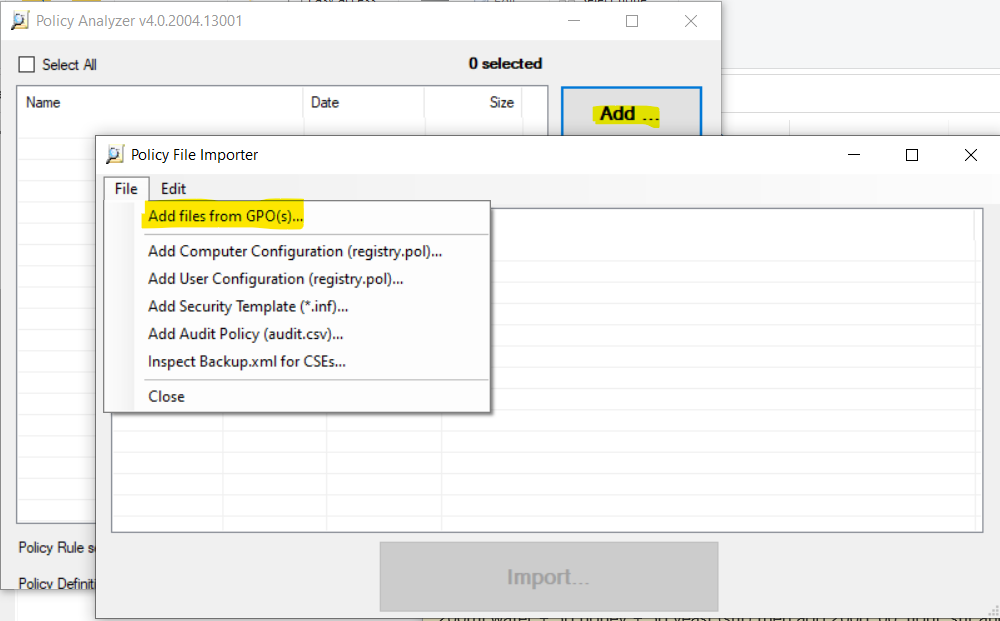
Once backed up, let’s import the CIS GPOs into Policy Analyzer, launch the tool and click Add > File > Add files from GPO(s)…
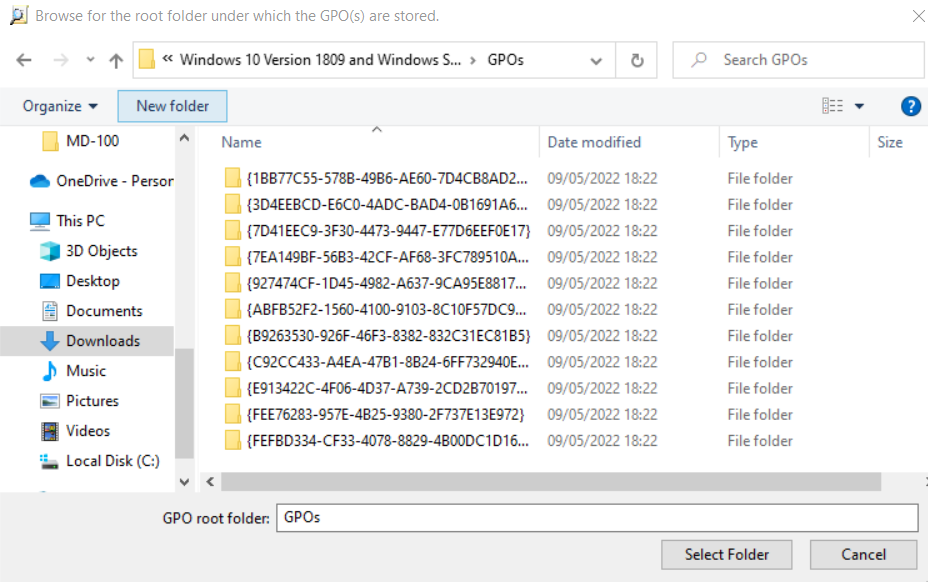
Select the folder containing the CIS controls
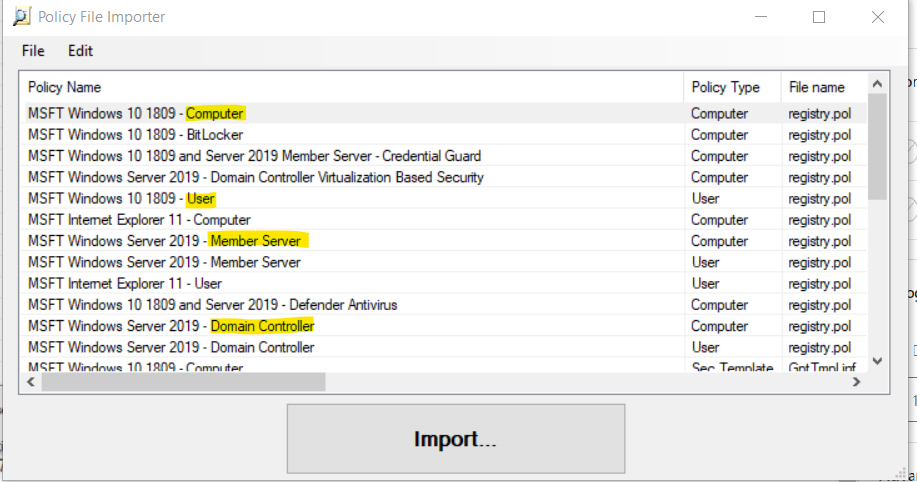
Now select the relevant GPOs for your environment, our earlier scoping exercise should help here and as you’ll see below some policies are for member servers, domain controllers, user settings or computer settings – so be aware of the differences in the targeted objects or role of a given GPO.
You’ll be prompted to save a .PolicyRules file – this is just a reference file for PA.
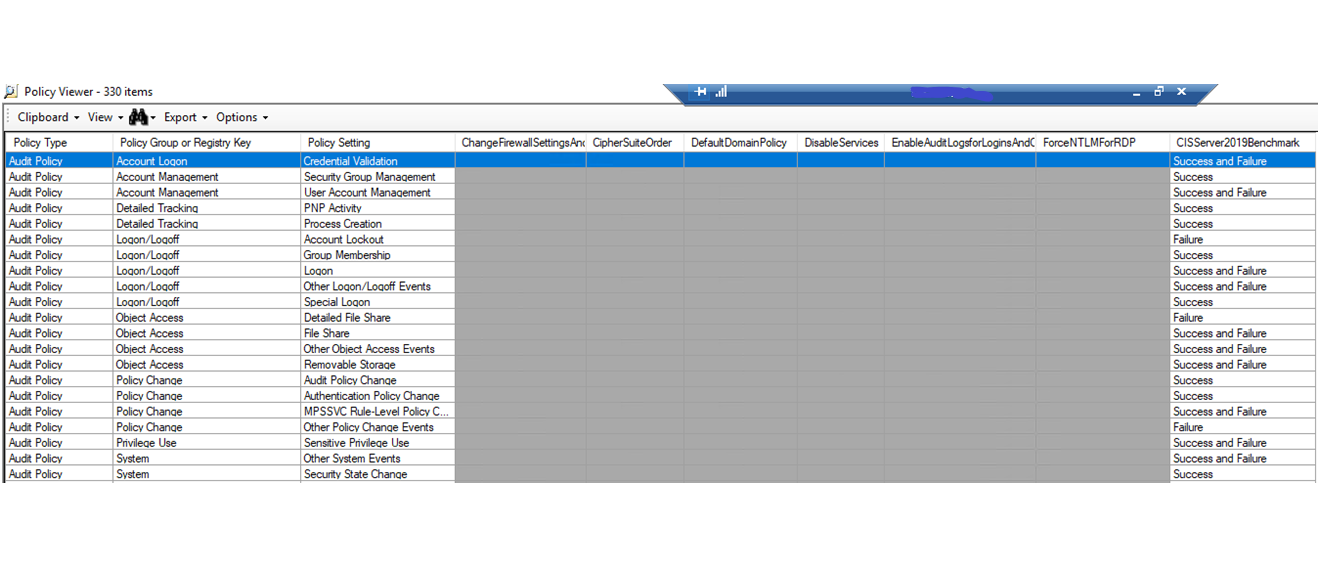
Once complete, you’ll see an entry for your newly imported GPOs and you now have the option to compare the controls to the local machines ‘Effective state’. In the results you’ll see two columns, your baseline (the CIS GPO) and the Effective State (your local machines state with group policy applied). Conflicts are highlighted, Grey is no existing setting is configured.
The default view is useful but it doesn’t show you which of your existing GPOs are conflicting with the CIS controls. To see this, we’ll need to import the GPOs you backed up earlier into Policy Analyzer. To do this, repeat the steps you’ve just taken to import the CIS GPOs, but point to your backed up GPO files and then save the .policyrules file. Re-run the comparison but this time don’t compare to the Effective State, instead select the CIS controls and your existing GPOs and click View/Compare.
The view will now contain a column per-GPO, making it much easier for you to identify which policy contains the conflicting setting and adjust accordingly.
Import CIS GPOs and ADMX/L templates into GPMC
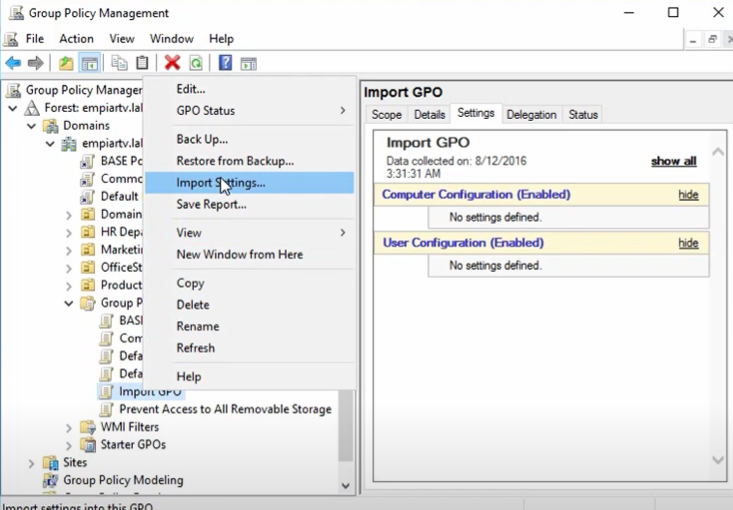
At this point you’ve got the nuts and bolts to perform comparisons and find conflicts. I would recommend you do a Export > All results to Excel to keep a record of your domain state before you start meddling with group policy. Spend time reviewing the conflicts and reading through the new incoming settings, when you’ve resolved the conflicts (either by editing your existing GPOs, or muting the settings in the CIS GPOs) you now need to import the CIS GPO files into GPMC. Here is a useful guide for doing this alternatively, or (slower) you can manually create a new Group Policy Object > Right click > Import Settings and select the CIS GPOs one by one.
Remember to also import the ADMX and ADML templates from the Templates folder into your central group policy store.
Conclusion
To recap, we identified the scope of devices you want to harden and what OS mix operates within your domain. We then extracted the baselines and compared them to the existing state of an endpoint and/or all existing GPOs to remediate conflicts, you’ve imported all the security policies into your GPMC console and are now ready to deploy the controls within your domain.
At this point I would recommend you have some test machines to deploy the new GPOs to and monitor the progress. I hope this post has been of some use to you and good luck. If you’d like to make a donation you can do so below.
After finishing my most recent contract I took some time off to do some projects on my house and take a well earned break after 1 1/2 years with no let up. Inevitably after a few days I started feeling restless and having had one eye on AVD over the last 18 months (but no hands on experience) I wanted to get to grips with the technology and understand how it works, but did not expect I could pass a specialism exam as quickly as I did, so I wanted to share the steps I took with you so you can also benefit if you’re keen to learn about AVD without having to waste hours watching lame tutorials or reading over priced textbooks.
So, with ZERO prior AVD knowledge and very little general Azure experience, below details my approach to passing the AZ-140 certification, which took me around 2-3 weeks at (almost) ZERO cost and sitting the exam remotely (home proctored). I hope it helps you achieve the certification and good luck!
Exam Format
The AZ-140 exam is around 50-55 questions of which 15-20 of these are in a case-study style. Note that the exam is periodically updated to cover new technologies or developments to the AVD platform and you can expect the exam to include around 5 or 6 questions that are under review by Microsoft. You won’t know which questions these are (and they do count towards your final score), and you will be requested to provided feedback on them once your exam has been submitted.
Getting started…
I usually do a thorough high level skim-read of the main technologies that are referenced in the exam blueprint. Microsoft have an AVD learning course that covers the basics, do this and then look through the Microsoft Azure Virtual Desktop Documentation – don’t spend more than a day discovering and note taking because the next steps will alleviate any concerns or knowledge gaps you may perceive yourself as having…
Getting hands on experience with Azure Virtual Desktop: Register for Office 365 Premium Trial and Azure $200 free credits
Once you’ve given yourself a primer in the high level elements of an AVD environment you can now get hands on with AVD and (with bias) the best way to do this is to follow the Azure Academy AZ-140 study guide series on YouTube. This is literally the only resource I used for practicing the hands-on configuration and it will school you from AVD zero-to-hero in a few days. Before starting the series you will need to get a free 30-day trial of Office 365 Business Premium and register for an Azure account. The O365 trial is required in order to login to the AVD session hosts that you will build during the Azure Academy series (you must have a license in order to use the service). You should register for Office 365 Business Premium first and then register your Azure subscription using the same credentials. Bear in mind the 30-day clock is ticking once you have registered, so you should commit to study from this point on.
Register for Office 365 Business Premium trial here
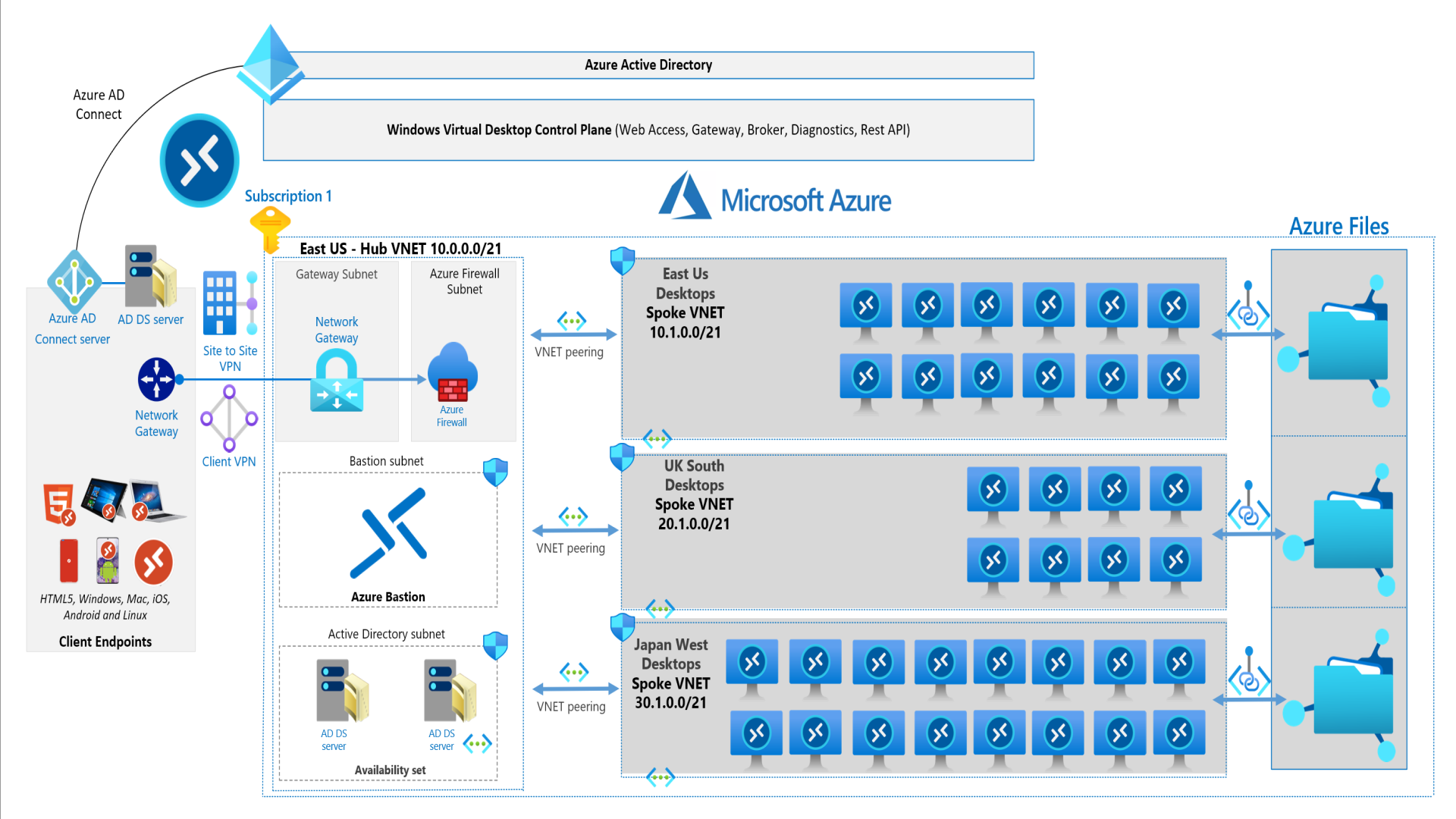
Dean Cefola’s Azure Academy AZ-140 Study Guide series is broken into 2 halves – videos 1-10 deal with planning for an AVD environment and cover things like understanding the preferred technologies for AVD and decision making for DR/failover, knowing what components are used in a typical setup and how to connect your on-prem services to AVD – it’s all tutorial based with no technical work. Video’s 11-20 are 100% hands on and will take you through the technical implementation of the ‘What The Hack’ pre-defined, design of the AVD environment (below).
The beauty of the series is that he covers every aspect of the exam using a mix of manual , ARM templates, Powershell and Azure CLI to build out 3-region AVD setup complete with DR, backup and an optional VPN so you can connect into your multi-session desktop hosts and test the service. You will learn everything you need to pass the certification, but also get clearly communicated explanations of all the components used in AVD with no technical guff and zero ego. Dean is also responsive to comments so you can get help when needed and simply put – this series will leave you feeling confident in how to setup an AVD environment and you will learn a ton whilst doing it, the entire What The Hack environment costs around £15-20 per day when it’s powered on and deployed, so you can spend a week or two tweaking and practicing without running out of free Azure credit. Just remember to switch off your VM’s when you’re not studying to ensure you don’t burn through your azure credits.
Final Prep: How Microsoft Test and Measure Up
When you book the exam you will have the opportunity to add MeasureUp AZ-140 Practice Test at a 50% discounted price to your exam booking – I would recommend doing this as it’s cheap and to this point you’ve not spent a penny and have no idea of the technical level of experience the exam questions are targeted at. I spent a couple of days working through the practice test, referencing the aforementioned KB articles for particular services, understanding the common misconfigurations in an AVD environment and ironing out the steps to take for configuring various AVD elements.
Microsoft love to write questions that are formulated from their knowledgebase articles. Whilst you are revising and re-configuring parts of the ‘What the Hack’ environment, make sure you reference the Microsoft KB’s and take notice of the order of the steps that the KB’s follow to configure a given component. For example, let’s take enabling authentication for an azure file shares – this is a question that will be guaranteed to appear on the exam and you should know the steps as detailed in the KB here – I emphasise this not because the Azure Academy misses steps, but the video series is relatively fast paced and it’s easy to overlook what the actual configuration steps are, particularly when Dean is providing you with the various scripts, templates or options to select, so my advice: avoid having a false sense of confidence and read the adjoining KB’s!
Good luck and thanks for reading!
I passed with a score of 920 and, for once, actually enjoyed every part of the study process – I hope you found this post useful, get out there and get learning!
There’s not much information online to assist if you’re studying the VMware DTM track – last year I wrote a guide for studying VCP-DTM and having recently passed the VCAP-DTM Deploy I am sharing my experience below to help you prepare. You’ve probably already discovered Patrick Messenger’s VCAP-DTM Deploy Study Guide which is full of useful information, read on for my thoughts.
What is the VCAP Deploy exam like vs VCP?
VCAP Deploy is 100% hands on technical lab based exam. Unlike VCP, there are no theory or multiple choice questions. You are presented with a VMware HOL virtual lab which is very, very close reflection of this: HOL-2151-01-DWS – VMware Horizon – Getting Started with App and Desktop Virtualization and contains numerous mis-configurations within the Horizon stack (think connection servers, master images, AD/GPMC, pools, farms etc). You have 205 mins (3:25hr) to answer 28 questions. This may seem like a lot of time, and if you’re at VCAP level you’re probably a proficient engineer who can type fast and work quickly in vSphere but don’t be fooled! I have around 7 years experience with Horizon and ran out of time on the first attempt. The main ‘lag’ is getting used to the lab interface. Each question has a number of advisory comments which tell you what service or appliance you’ll need to log into in order to fix the issue (which I felt was generous!) as well as the required credentials – so in this respect there is some guidance as to where your focus will need to be. In most cases there are a list of requirements (which helps a lot) and limitations around what actions you should or shouldn’t do in order to complete the question – for example ‘Do not enable provisioning’ or ‘Use the default options unless specified’ and this helps provide scope. As you’d expect there’s a handful of easy softball questions ~25% at the beginning and towards the end of the exam, and the remaining ~75% are more involved and will require multiple troubleshooting steps to fix. I would strongly recommend you spend the first 20-30 mins of the exam skipping all the lengthy questions and cover the single-task questions. However, some questions are subjective and will require that you really think about what the ‘best practice’ is e.g. tune an instant clone image for a given use-case.
How to Prepare: My approach…
vMug, HOL, home labs and first attempts…
Unless your employer is covering your exam fees or training ,you’ll be forking out the best part of £400 to sit the exam – the VAT bites at checkout. I suggest buying a vMug advantage membership for $200 (sit on the vMug website for 10 mins and you’ll get a 10% discount popup appearing) – then use the 2x VCAP vouchers @ 20% discount. I think I’ve only ever passed 1 technical exam (no, not ITIL v3 Foundation) on the first take (CCNA Part Deux!) and if you’re half smart ‘you know how much you don’t know…’ or something like that – anyway, with this in mind I sat the VCAP (no revision) to dip my toes and test the water. I spend 8 hours a day doing work in Horizon/ESXi so I felt fairly confident I would achieve an acceptable score for a first try – I failed with a score of 220 – but the experience was hugely valuable and I didn’t really expect to pass first time as I know some of the topics covered features I’ve not touched for a few years (and thus, got rusty with) and in particular vIDM – I’ve never used Workspace ONE.
Prior to the first attempt I had considered forking out £1k on buying server equipment to build a nested home lab environment to study for this – I would recommend doing this if you’ve only got a few years experience with Horizon and perhaps haven’t ever setup an environment from scratch – it’s hugely valuable and will prove useful if you’re working on a VCP (DTM or DVC). However, for VCAP I don’t think this is really necessary – the money is better spent sitting the exam, particularly because the aforementioned HOL provides just about all of the functionality you need to get up to speed on the blueprint. All of the tech tested in the exam is available in the HOL and thankfully you’ll be using all the latest Horizon 8 features in the HOL, but be aware – the exam tests Horizon 7.X so you’re dealing with 7.10-7.13.
Another benefit to forking out for a first attempt is to steer your learning so you understand what depth to study the blueprint at – I tend to over think how much I need to know for technical certifications, and frankly, it can be detrimental to your life energy if you’re wasting time boring yourself digesting KB’s about edge-case configuration problems that appear as frequently as Prince Andrew – it’s highly unlikely these issues (inc Prince Andrew) will be covered on the test. I generally resign myself to the mentality VMware are going to shaft me for exam fee’s but ultimately having the cert will land me good roles as noble and honest recruiters look through the VMware certified professionals on LinkedIn. With this in mind, I started working toward the second and final attempt…
Exam blueprint
The blueprint is nice to look at – why? Because there’s f*** loads of topics that are not included in the Deploy exam 🙂 It is quite encouraging to see (what I consider) a short list of topics to study. I would suggest overlaying each of the bullet points with your real world experience, and then revisit the Horizon 7 documentation – for example: ‘Troubleshooting agent connectivity issues’ – how do you approach fixing a desktop stuck in ‘Customizing’ state, or ‘Agent unavailable’, or ‘Error’ state – checking the network adapter, horizon agent components, post-sync script, hostname issues etc – this is how I might approach the problem, but if I then revisit the VMware KB’s to look at their best practice steps – there’s additional actions you may not consider e.g. using telnet and nslookup to check DNS resolution to the connection servers – approaching revision in this way will be beneficial as it forces you to consider what you already know and build on it by providing more ideas you can apply in real world situations – which is really what an exam should be about (and it’s refreshing to invest time on a cert that isn’t based on multiple choice…).
The exam problems are formulated around the Horizon 7 documentation as a framework, so refresh yourself on the core features available in horizon and how to configure them – I’m mirroring parts of the blueprint below but this is the backbone of what you should know:
Kiosks: preparing the connection servers and creating kiosk clients
RDS and Instant Clone Pools/Hosts: setting up application pools, entitlement, instant clone, VM-hosted apps – what settings are available when you setup these features, and how would you test they work?
Instant clone pools: pool settings, pool operations, enabling 3D features, HTML access, entitlements, master image creation and preparing an image for deployment including optimizing the hardware and software.
Connection Server configuration: backups, storage, authentication options, using vdmadmin, services, troubleshooting replication/ADAM issues.
Log files: know how to collect log files from horizon client, agent and appliances (VIDM, UAG, Connection server etc) in the horizon stack.
Global entitlements: configuring and exporting.
Horizon Administrator: understand the admin console and how you can configure global settings.
Horizon Helpdesk: what features are available and how do you use them?
Troubleshooting issues with instant clones/agent availability: unable to connect to a VM, installing the horizon agent, dealing with VMware Tools issues.
Desktop performance: a bit of a subjective topic – but you should be aware of how to assess desktop performance on a windows machine (what native tool are available to do this…p.s. but you probably never EVER use!)
Identity Manager / vIDM: enabling SAML and authentication protocols, adding Horizon resources and syncing objects, entitlement of resources to users and groups.
AppVolumes: Appstacks and writeable volumes, managing and using these.
Group Policy/AD: A few questions require some AD and group policy administration.
ESXi – consider best practices for maintaining uptime for a horizon environment – what features might you configure in vSphere to provide some redundancy?
Second (and third) attempt…
I spent a couple of hours each night for a couple of weeks going over the steps above and at my resit, felt confident in what to expect. On the second attempt I invoked-wisdom and took the below approach. This concludes the post and I hope you get some use from this, I highly recommend studying the VCAP as it’s actually like being at work for a few hours and, because it’s hands-on you’re not wasting time learning acronyms and theory that you’ll never use again.
1/ Immediately fire up Chrome and open tabs for all core appliances, setup RDP sessions to connection servers and open GPMC and AD.
2/ Skip through all the troubleshooting/configuration questions and finish the quick (2 requirements or less) questions.
3/Copy/paste all the vdmadmin -help output into a text file and save it on the desktop of connection server – this prepared me for crafting the answers to several questions and have the UNC path to the vdmadmin dir at hand. The keyboards were crap at the testing centre and you can’t use ctrl+c to copy so get in the habit of right click > copy.
4/Look out for gotcha’s or silly requests in the phrasing of test questions – anticipate ‘typical’ mis-configurations in whatever issue you’re looking at.
5/ I flagged a couple of questions with VMware because I felt the wording was very poor/confusing – obviously there is an expectation of competence with a VCAP, but there are also multiple ways to answer a couple of the questions and I feel I fixed a particular group policy issue with a perfectly acceptable solution that I would implement in the real world, but it was not the answer VMware were expecting. My advice here is to try and consider what is the path of least resistance with a given fix i.e. what can you do to minimize the amount of configuration changes whilst still addressing the problem?
Pass!
I passed on the third attempt with a score of 300/350 – I had hoped to do better but a pass is a pass..! Onto the Design exam and further posts to follow.
Windows Defender AV for non-persistent instant clone desktops is a lightweight and free AV solution for VDI that is growing in popularity as an alternative to typical third party options as people move to O365 and want to align themselves with Microsoft across their software stack.
Below is a quick guide on how to configure Defender for Endpoint (not ATP) which is a free version of Defender included with E3 O365 licensing using.
A file share is used as the source for definition files. I recently had to setup a proof of concept of this for a client who had been using McAfee ENS and we saw a notable improvement in performance and overall desktop experience.
The guide does not cover how to configure VM’s to use MMPC, WSUS , Cloud based definitons or ATP/MAPS.
Environment: VMWare Instant Clones, Win 10 1909.
What you’ll need…
1x SMB file and an endpoint for handling the scheduled tasks needed for Defender definition updates
2x scheduled tasks, one to perform the definition download and unpack, and a second to clean-up old definitions. Both scripts provided.
VDI specific Defender settings that are configured on local group policy on the master image, and remaining settings configured on domain group policy.
Before getting started..
Check you have the latest ADMX templates for your OS.
Use a clean build, ideally with an image that has not had any AV agent installed previously.
Step 1: Setup a share and scheduled tasks to download, unpack and clean-up definitions…
Identify a virtual machine/server/desktop or some endpoint that will be responsible for running the scheduled tasks for fetching definitions and storing them in an SMB file share. The endpoint will require internet access and I refer to this machine as the management VM.
Create an SMB file share to store definitions.
Setup a file share that will store the unpacked definitions. The below example resides in C:\wdav-update on the management VM. I recommend using the same folder names as this will tie together with the download script that will be used later on.
Get-SMBShareAccess -name wdav-update result should mirror the above
*IMPORTANT* if you provide FULL CONTROL to the folder or share, then you may experience the definitions being automatically purged by the child VM’s after they self-update, making the definitions unavailable at next boot . From my limited testing this behaviour appeared to be by design can’t be controlled by any GPO settings, so avoid this by setting the NTFS permissions correctly.
Create scheduled tasks to download definitions
Microsoft provide the following PS script which handles downloading and unpacking of definitions. There is an alternative script available here but I found the below script does the job and is easier to understand. Adjust the value for $vdmpathbase accordingly, but do not change the [0000…] folder naming convention. This is required otherwise the child VM’s will not be able to parse the folders and will fail to self-update.
-Configure definition update to run every 2 or 4 hours , typically MS publish new definitions twice per day, around 8-12 hours between each update.
– If the scheduled tasks are failing, ensure the account used to run the task (local SYSTEM or service account) has internet access – you may need to allow unauthenticated traffic from your management machine if using the SYSTEM account. If you use a zScaler/Proxy device and authenticate clients using a .pac file then you may need to launch IE as the SYSTEM account (on your management VM) and configure the .pac file accordinalty. To do this , download PSExec and run the below command to launch IE in the context of SYSTEM, then configure the .pac file in IE settings.
Step 2: Configure Defender local group policy settings on your master image
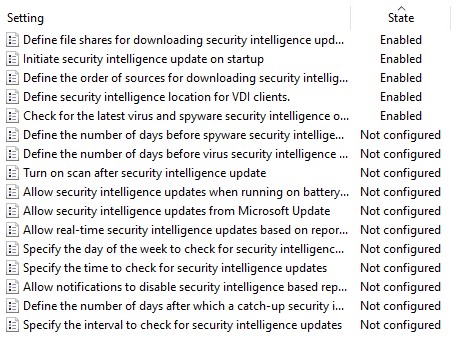
Defender for non-persistent VDI relies on several localgrouppolicy settings being baked into your image to ensure they are available at boot time. Configure the following 5 settings via gpedit.msc on your master image.
IMPORTANT: You must configure Define security intelligence location for VDI clients andDefine file shares for downloading security intelligence updates . If you do not configure both, the service will not work.
Values to use:
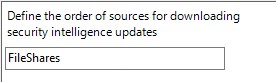
Define the order of sources for downloading security intelligence: FileShares
Define Security intelligence location for VDI clients: \\yourfileserver\wdav-update
This concludes the minimal settings that are required on the master image.
TIPS FOR LOCAL POLICY CONFIGURATION
You may want to use LGPO.exe to export a template of the Defender settings for your environment for quick setup in future, or add to an MDT task-sequence for your image builds.
If your master image has picked up policies you don’t need or for some reason you’ve had your hand forced to use a crappy image – you can wipe all the local and domain policy by running the below command (elevated). This will wipe all local policy WARNING – do this at your own peril (it will remove OSOT optimizations and all domain+local policy). Remember to re-join to domain and update policy afterwards.
If your enterprise has never used Defender before and/or has used a different AV product to date, then it’s highly likely you’ll have domain policy in place to disable Defender and/or your base image will have no pre-existing Defender engine/definitions installed. In this case, you may have to install a baseline definition pack so the Defender engine is activated in the build. This may not apply to all environments but I experienced VM’s failing to update on their first boot because no existing definitions were installed. If this happens, Download the latest definition set from Microsoft and install the mpam-fe.exe file – this will install a definition pack and give you an engine status/last updated point to work from.
Step 3: Configure Defender domain group policy settings…
There’s a plethora of settings for Defender and I won’t cover every setting here. The high level suggestions are covered in the Microsoft blogs – so refer to these, but also be aware that services like MAPS and ATP rely on many of the options available – and we’re not configuring these services in this blog post – only the ‘barebones’ AV product. Some examples of VDI-friendly settings you may want to use are below.
Important: do not configure any of the settings configured in Step 1 on the master using local policy on our domain group policy.
\Windows Defender Antivirus
Turn off windows Defender: Disabled
Randomize Scheduled tasks times: Enabled
\Scan
Allow users to pause scan: Disabled
Check for the latest virus and spyware security intelligence before running a scheduled scan: Enable
\Security Intelligence Updates
Specify the interval to check for security intelligence updates: 2 hours
Step 4: Verify that it all works!
So lets recap on what we’ve done;
We’ve setup a file share and it’s populating every 2 hours with the latest definition files, unpacked, and ready to be read by our VM’s. We have the necessary NTFS and share permissions in place to make our \wdav-update share accessible from the VM’s and it can be read/written to by the SYSTEM account and/or your service account responsible for running the scheduled tasks.
Your master image has the necessary local group policy settings required at boot so the VM’s should be reading from the share and self-updating at every logon, and this should be reflected in the Virus and Threat Protection console in Windows on the VM’s, example below.
Your domain group policy settings are configured to manage things like scan times, quarantine behavior, UI and notifications etc and critically you’ve checked the Disable Windows Defender policy is set to disable..!
Spin up your VM’s and check the below log file – search: UpdateEngine – here you can see the subfolders in our definition share being traversed. The log output Skipped verification….Due to PPL is expected and this does not indicate an error. Any errors will be indicated in the entry that begins: UpdateEngine start:
%ProgramData%\Microsoft\Support\mplog.log
Virus & threat protection settings should show Last Update: today’s date
*Update 22/01/22 After much effort spent getting this to work at a customer site, it turns out there was never any need to have conditional access enforcing VDI devices to be hybrid-joined. By turning off the conditional access policy that checks the device is Azure-AD joined, there was no longer any issue. Note, if you’re using a zscaler you’ll need to configure source IP anchoring as well.
*Update 31/07/21 After migrating a customer from Appsense to VMware DEM I had to find a new method to perform the hybrid join. The below article now provides two methods for performing the join.
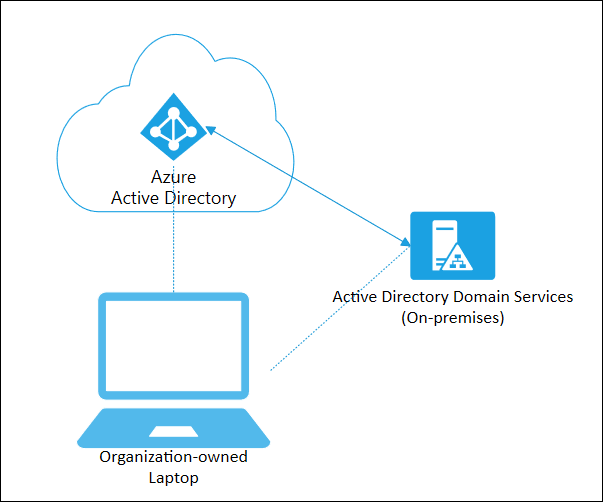
Read this post if you’re having problems performing Hybrid Azure AD join on non-persistent VDI. This post covers the how to configure Hybrid AD join on VDI , how we discovered it was broken and a clean solution to fix it.
The running environment was Windows 10 1909, VMWare Instant Clones on Horizon 7.10, with zScaler proxy (.pac files).
For the solution, click here or scroll to end of article.
How to configure Hybrid AD join and why it might be failing for you…
In our case, hybrid AD join was always broken – we just hadn’t noticed because the device join was successful which is all that is required for O365 services to work (Outlook gets a license – everyone is happy!) but the user PRT token (which I’ll refer to as user-join) was failing – which, if you have InTune in place for MDM policies and all that fancy stuff – you may find these devices are broken when the VDI is in use.
Microsoft offer very little guidance on how to implement Hybrid AD join on VDI but Google yields a lot of negative feedback from folks implementing this for VDI. This VMware thread was helpful in our discovery, and the guidance from Microsoft is helpful, but not as detailed as it should be.
Microsoft’s suggestions are:
Implement dsregcmd /join as part of VM boot sequence.
DO NOT execute dsregcmd /leave as part of VM shutdown/restart process.
A .bat file or powershell can perform the join as follows, and configure this to run as a start-up task. Note, the task should be ran under the context of the SYSTEM account, and ensure your network is configured to allow this traffic (see zScaler section).
dsregcmd.exe /join
Master Image
You should ensure your master image does not perform an AAD join at all. You should run the /leave command as SYSTEM account prior to sealing your image and taking a snapshot, although we would often forget to do this. Whether this contributed to the issues covered, I’m not sure. Additionally, some threads suggest your master image should not be domain-joined – in our case, the master image IS domain joined, but was NOT AAD joined.
Use PSExec to perform a /Leave command as SYSTEM account:
Psexec -I -s dsregcmd.exe /leave
zScaler .pac on VDI for Hybrid AD Join
If you’re using a zScaler to manage internet traffic you may find that Hybrid AD join fails because the traffic is sent from the VM’s under the context of the SYSTEM account and if no .PAC file is configured against that account, then it will fail (unless you allow unauthenticated traffic on your zscaler devices). If we also throw into the mix that Microsoft recommend you join AAD during device start-up – your user will not have authenticated to zScaler when the /join takes place, so you must configure this.
On your master image, launch Internet Explorer as SYSTEM account, and then manually configure the .PAC file manually. Download PSTools and then run the following command from an elevated cmd prompt:
The above steps explain how we were configured for Hybrid AD join BEFORE we discovered it was not working. Read on for the discovery, and adjustments we made. Click here for the solution.
How to identify a VM has failed Hybrid AD Join
As a large enterprise with multiple VDI sites managed by different teams, we discovered some sites were performing the /join during the ‘Desktop Created’ stage of the logon process (i.e. once the user is logged In and desktop shell fully loaded) – in these pools we saw the device join was successful, but user join (PRT token)was unsuccessful – this is because the user was not logging into an AAD-joined device, so the device was deemed unauthorized to receive a PRT token.
Open cmd prompt and run: dsregcmd /status
Review the output –note you may also see that the Tenant Name is blank in your output. The device will show as joined, but no PRT/User join had taken place –
Device State shows successful AAD join:
User-join has failed and the AzureADPrt token is not present.
Contrary to MS guidance we experimented with adding a /leave command at logoff – on these pools we saw the object in AAD was updated more accurately in Azure – the ‘Last Activity’ times reflecting the join/leave times of when the desktop sessions were in use. However, the underlying lesson here is that the device must be joined first then the user is logging into an authorized device and a second/join should take place to fetch the user PRT token.
On the pools configured to use a start-up taskwe found the device join would periodically fail – but this became more frequent as time passed until we had complete failure of all devices in a given pool.
VM template objects flooding Azure AD
We searched AAD to compare on-prem device names to their records in AAD and discovered we had a ton of VM’s joining AAD under the machine name of itXXXX – this is the internal template object which is created by ESXi when a new snapshot is published to a desktop pool. AAD was being flooded with these objects every time we changed the snapshot on a desktop pool.
VM’s were joining AAD successfully (device-join only) but their ID did not match their counter-part object in AAD – instead, it matched the internal VM template.
At this point we knew that when a new snapshot was published, a new AAD object was being created with the VM’s template account ID. Additionally, it proved the /join was taking place too early in the logon process (at machine start-up) – and instead of joining the hostname of the VM that is provided by QuickPrep (e.g. PROD-VM-1) the ID of the instant clone template was being used to join the machine to AAD.
To verify this:
Open AAD and search for device name:“it“
Note, this applies to VMware Instant Clones environments only, Citrix and Hyper-V hypervisors will use a different provisioning process, check your vendor documentation to know what to search for)
Template VM objects in AAD –
Duplicate VM device ID’s
Another symptom of this issue was VM’s would recycle their Device ID – we found the same Device ID (after the device had joined AAD) was in use by other VM’s in the same pool. Presumably this is a hangover from previous symptom.
Take 2 VM’s from the same pool, open CMD prompt and run dsreg
cmd /status, compare the device ID’s on both devices – are they identical?
Verifying AAD Join process
To check if your VM’s are joining AAD with an incorrect computer name:
Check the local VM event log Applications and Services Log> Microsoft/Windows/User Device Registration for event ID 335.
Note, the computer name is itXXXX , user SYSTEM.
Let’s recap what we’ve learned so far:
VM’s are joining AAD with the wrong computer name
AAD is populated with stale records for our VM’s
Our VM’s are recycling device ID’s
The User-join (PRT token) is not working
After several hours of toil, testing and swearing, We tried moving the /join to different stages of the logon sequence, but only found Start-up to be ‘successful’ for the device-join. During testing we removed the /join altogether – and low and behold, we discovered the VM’s were still joining AAD – this is because there are 3 scheduled tasks baked into the Windows 10 1909 OS to perform auto-AAD join.
Microsoft don’t tell you this in their VDI guide because they prefer ‘the Community’ to figure it out…they’re real nice like that.
1/ Perform the /join operation TWICE, once at Start-up, and again before the desktop shell has loaded.This ensures the the Device and the User PRT token are both issued succesfully.
2/Ensure the dsregcmd.exe /join operation is managed by your profile management tool. Don’t try to mix combinations of scheduled tasks/group policy/profile tool.
3/ Delete the Automatic Device Join scheduled task. This was the root cause of all our pain. The task will perform a join under user context and has 2 triggers – a ‘special event’ and at logon.
4/Always perform dsregcmd /leave on your master image. Ideally, avoid the master image from joining AAD in the first place.
5/ (Optional) Add a /leave command at logoff of the VM. This is unsupported by Microsoft, the only benefit we found from including this was the ‘Joined’ and ‘Last Activity’ timestamp was kept up to date in Azure AD – but again, not supported.
6/ (Optional) Set the machine GPO ‘Windows Components/Device Registration/Register domain joined computers as devices‘ to disabled. This helps keep things tidy and you can be confident the join is only handled by your profile management tool.
**Alternative Method**
I recently had to decommission Appsense for a customer and move them to VMware DEM. In doing so, the method described above had to be changed. Although DEM can run tasks at Startup of the VM (it hi-jacks the native group policy startup/logoff scripts) which isn’t suitable for performing a /join because the template account for the pool is then joined to Azure AD. Which we don’t want. Thanks to some feedback on the DEM forums, I’ve found the below method works nicely:
1/ Configure a .bat file that has a /leave and /join. You’ll call this as the post-synchronization script when you configure the pool. Example file.
cd c:\windows\system32
dsregcmd.exe /leave
SLEEP 10
dsregcmd.exe /join
2/ Make the file available on your master image, ideally in the C:\ root somewhere and configure it as the post-synchronization script for the pool.
3/ You should now see the devices populate in AAD when the pool is being composed. When a user logs in , because the VM is now ‘trusted’ the PRT token should be issued. Microsoft does not support the /leave as part of non-persistent devices so I’ve ommitted this. It is possible to add a /leave command (perhaps as a shutdown script), but we’ve discovered no issues with leaving the devices joined in AAD indefinitely.
Master Image configuration
Step 1:Delete the Auto-Join scheduled task in Win 10 1909
On your master image open task scheduler: Microsoft > Windows >Workplace Join
Delete the Auto-Join task – this must be deleted and not disabled – because it’s a system task.
The remaining 2 tasks should be left in their default state – they should not require any manual intervention. If these tasks are disabled or not present on your image – then check OSOT or group policy if these are being deleted by an upstream policy.
Step 2:Remove your master image from AAD
Launch psexec from an administrative command prompt using: psexec.exe -i -s dsregcmd.exe /leave
You may see the below exit code 0.
Confirm the /leave was successful by checking AAD – you should not see the machine account, and the /status output should be as below.
/status output when device has left
Step 3:Remove existing itXXXX or stale records from Azure AD
Remove any of the stale device records from AAD. This should include the itXXXX devices , and any VM’s in pools your going to test in.
Step 4 (optional): Bake your user profile configuration into the master image
If you’re unlucky enough to use AppSense or a similar tool – you may have to bake your configuration into the master image. Other profile management tools may not require this step.
Profile Management Tool Configuration
Step 4: Configure the dsregcmd /join operations
Start-uptask:
Configure the 1st /join operation during Start-up of the machine (or machine boot).
2. Scope this to only apply to machines with your VM naming conventions – this ensure the correct devices join AAD, but also prevent the itXXX devices joining (or your master images). If you have no profile management tool, then this might work with scheduled tasks or a group policy object, but we did not validate this.
Pre-Desktoptask:
Perform a 2nd /join operation during the ‘Pre-Desktop’ stage– this is the point at which user authentication has completed, but the desktop is still loading. This should ensure the PRT is issued to the device, and also provides a backup to one of the scheduled tasks (re-sync) which does the same thing.
Has this fixed it for you?
1/ We no longer need to delete ‘stale’ AAD objects – there is only 1 AAD object per VM. Each VM joins to the same AAD object – no duplication, no dodgy device ID.
2/ When a new snapshot is published, we did not see the itXXXX devices appearing in AAD (clean joins!).
2/ User-join was always successful – this is probably because the Auto-Join scheduled task is not interfering with the registration process.
I hope this helps someone, if you find other solutions or suggestions to improve on this find I’d love to know






















 All things IT, EUC and Virtualization
Leave a comment